Desktop application
erdr gui (or erdr-gui, or the portable erdr-gui.exe) opens the default dataset. The pages
follow the workflow — Dataset → Configure → Run → Results → Readings & k → Export — and the
application computes nothing itself: a run, an analysis and an export are the services in a
worker thread, and the tables and figures on screen are the exporters' own (ADR-012).
Appearance
The application has the design of the template project's desktop application — the same colours, 10 pt base font, spacing, numbered page list, cards, buttons and tables (ADR-018).
| View → Light theme (default) · Dark theme · Follow Windows | Ctrl+T switches between light and dark |
| View → Zoom in / Zoom out / Actual size | Ctrl++ / Ctrl+− / Ctrl+0 (85 % … 175 %) |
| Ctrl+1 … Ctrl+6 | the pages; F5 runs ERDR; Ctrl+C copies selected table cells |
The theme, the zoom and the window's size are remembered. erdr gui --theme dark (or
erdr-gui.exe --theme dark) chooses the theme from the command line. The status bar shows the
reading as a badge — literal, closest or custom — and a ⚠ badge whenever a switch differs
from the literal article text; a click opens Configure.
Colours
One colour per meaning, the same on screen, in the Excel workbook, in the HTML report, in the figures and in the console (ADR-019). The colours are the ERDR workbook's legend; a legend under every table names the ones it uses, and hovering a cell or a column header explains its colour.
| Colour | Meaning |
|---|---|
| light blue · light yellow column header | quantitative feature (set I) · nominal feature (set J) |
| pink column header | the class label |
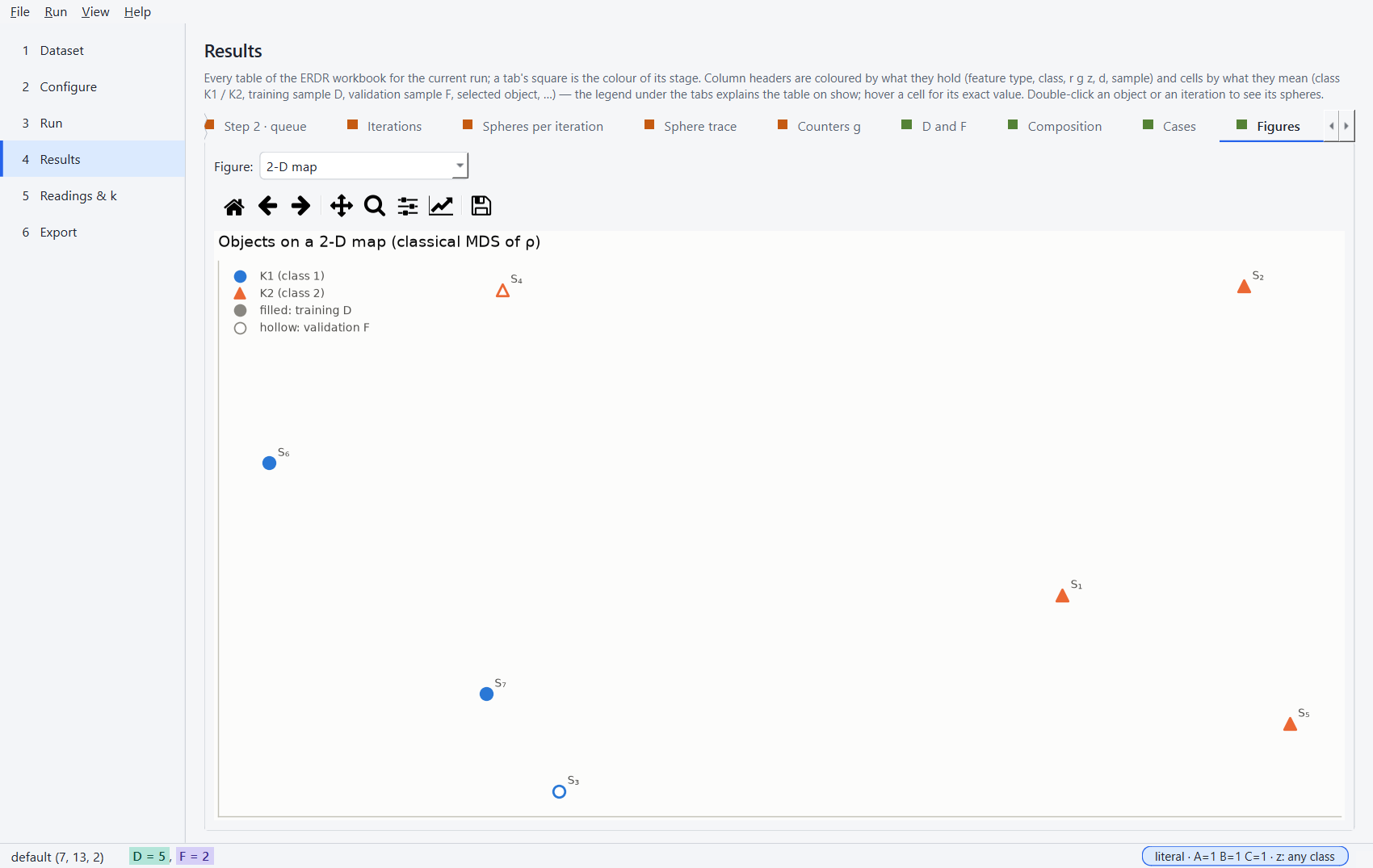
| blue · orange cell (K3 aqua, …) | an object of class K1 · K2 — the colours of the classes in every figure |
| aqua · violet | training sample D · validation sample F (also in the sample-sizes figure) |
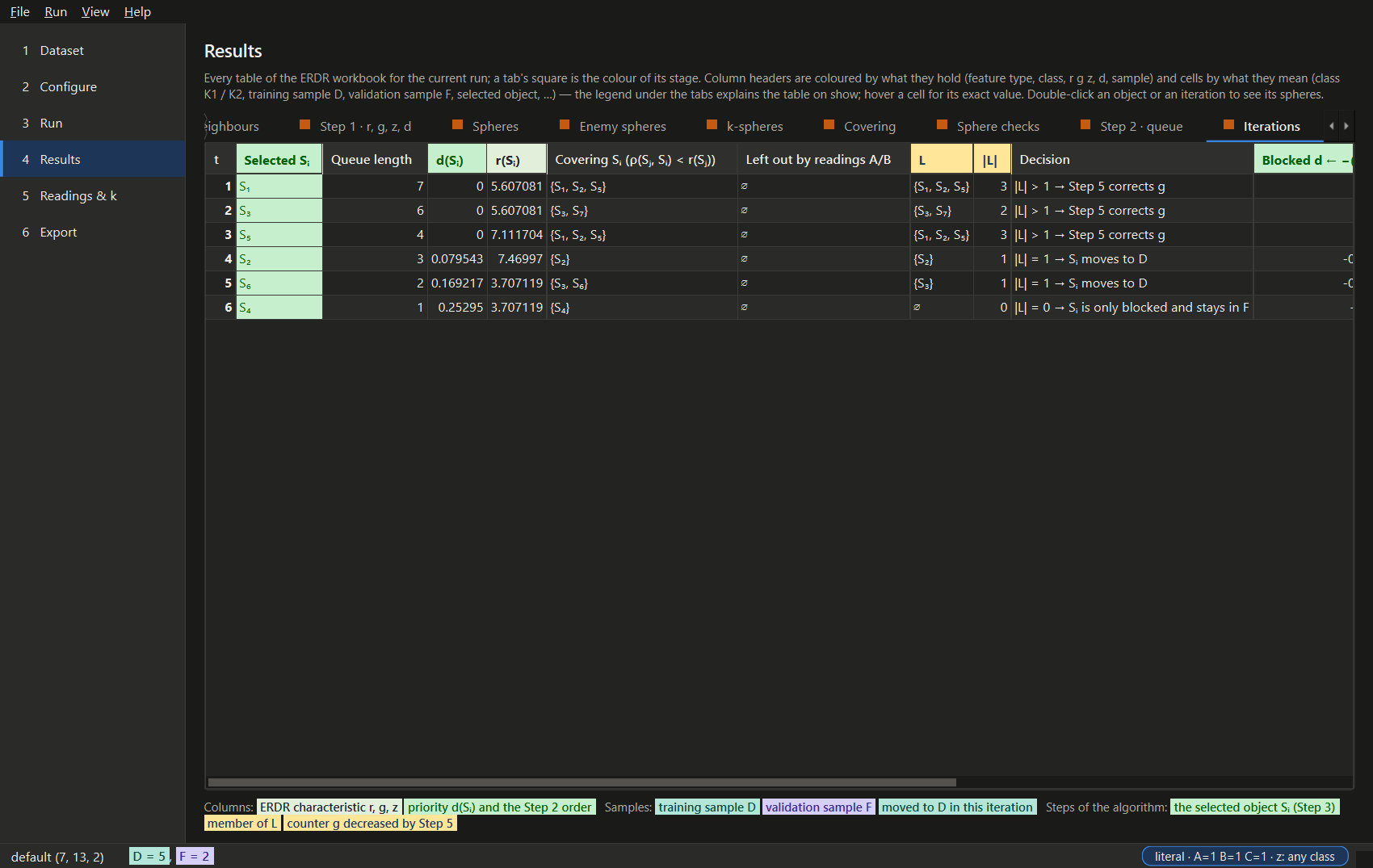
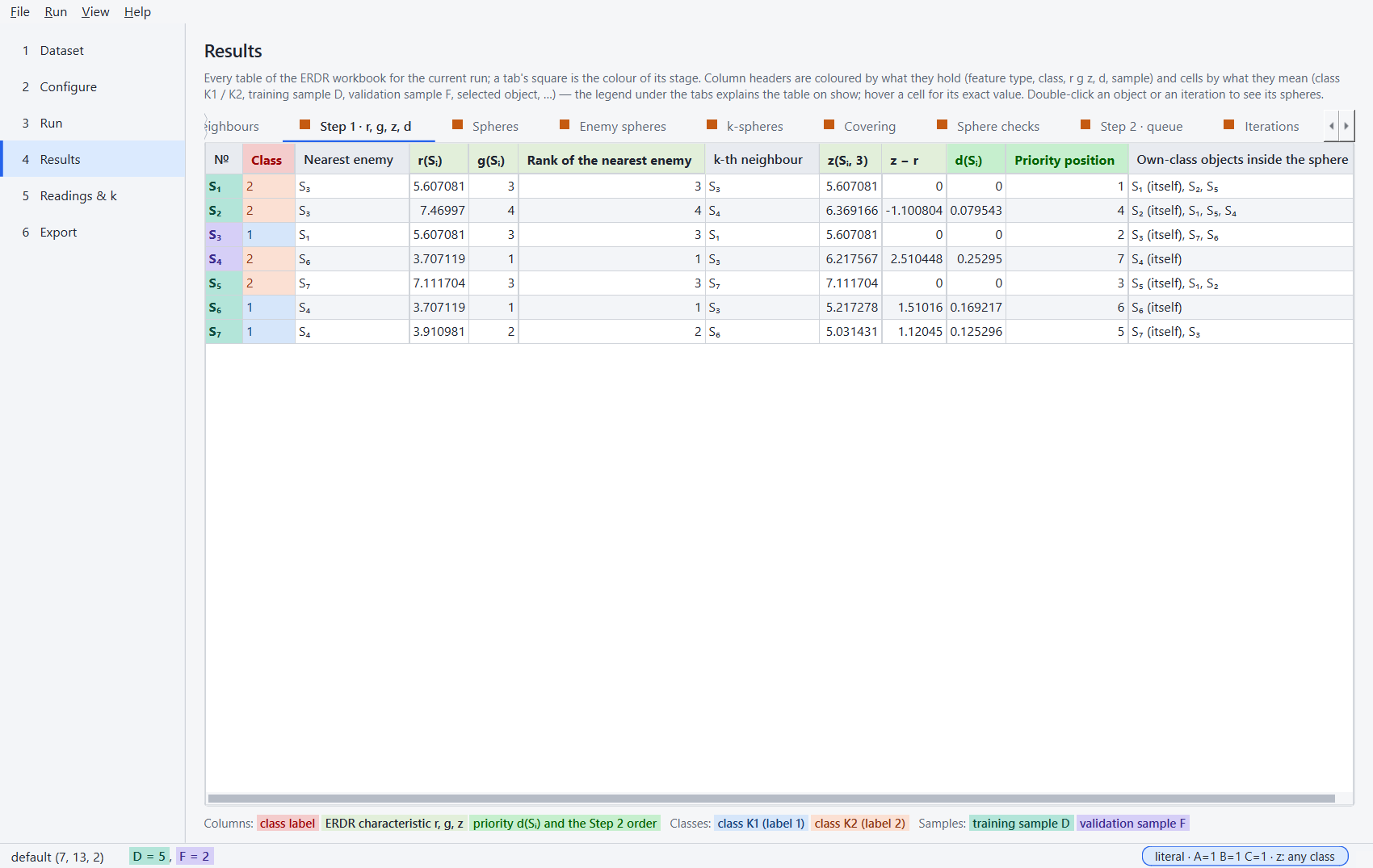
| light green · green column header | ERDR characteristic r, g, z · priority d(Sᵢ) and the queue position |
| lavender | a parameter or setting (A, B, C, z, k, the reading; the Run page's settings) |
| green cell | the selected object Sᵢ, own class inside the enemy sphere, the literal reading, a case that occurs |
| yellow cell | member of L, a counter lowered by Step 5, a Step 2 order decided by r |
| red cell | an enemy (another class); a case that does not occur, a k the rule does not permit |
| orange | ⚠ not the literal article reading — a switch, a reading, a badge |
The tabs of the Results page carry the colour of their stage, as the workbook's sheet tabs do: the data blue, Step 0 purple, Steps 1–5 orange, Step 6 and the charts green. The tints keep their light fill and dark ink in the dark theme.
Dataset
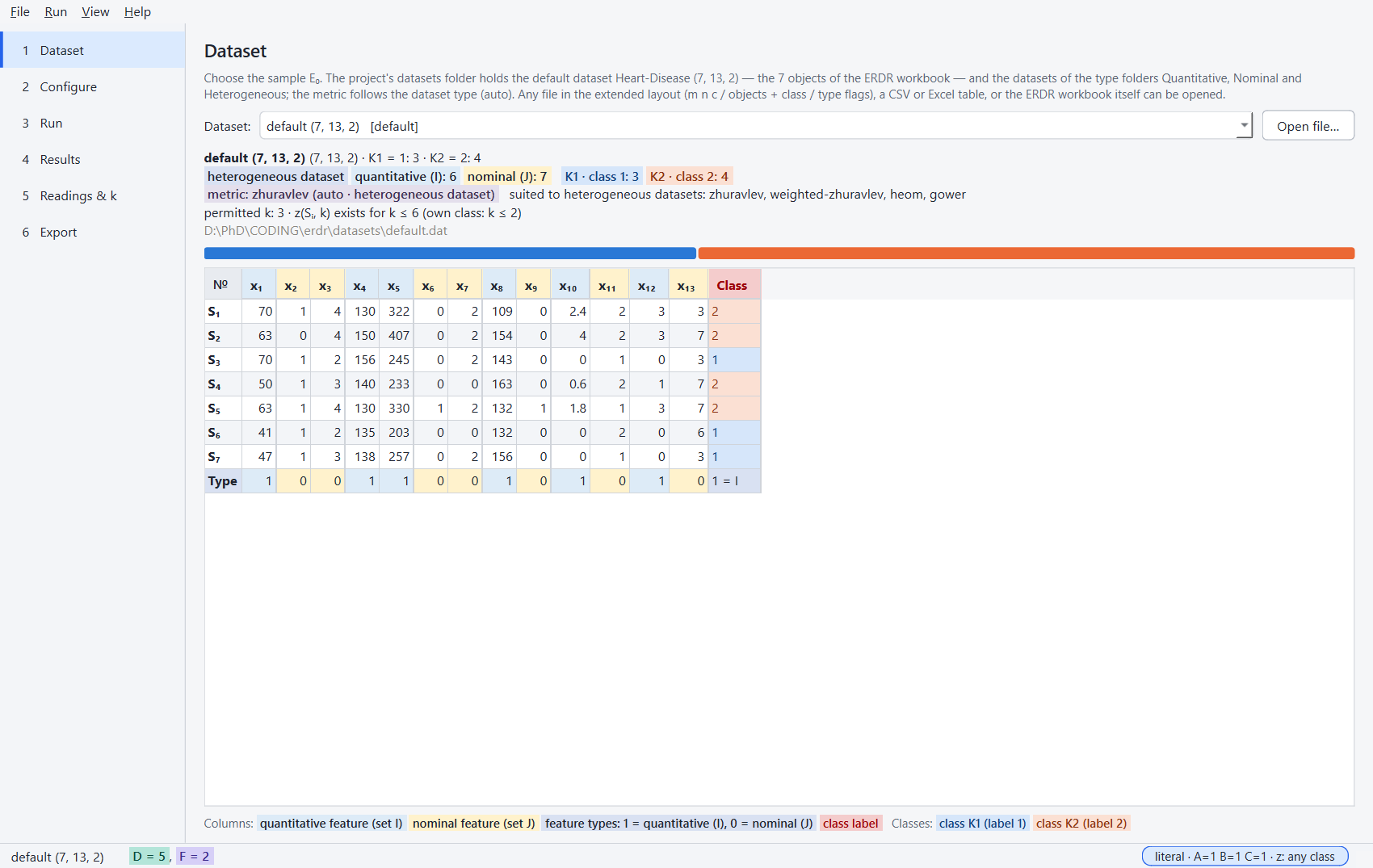
Choose a dataset of the project's folder or a built-in one, or open any file (extended layout, CSV, Excel, the ERDR workbook). The chooser lists the datasets under their type folders — Quantitative/, Nominal/, Heterogeneous/, then Built-in · … by type — with the size of a large file (TCGA_LUAD, 401 MB). The summary shows the dataset type (in the colour of its features), the feature types and the classes in their colours, the metric the configuration runs on it with the metrics that suit its type, the permitted k, a ⚠ line when a run needs more memory than is free, and a bar of the class sizes; the table's headers show each feature's type, its last row the type flags, and the class column every object's class.
Configure
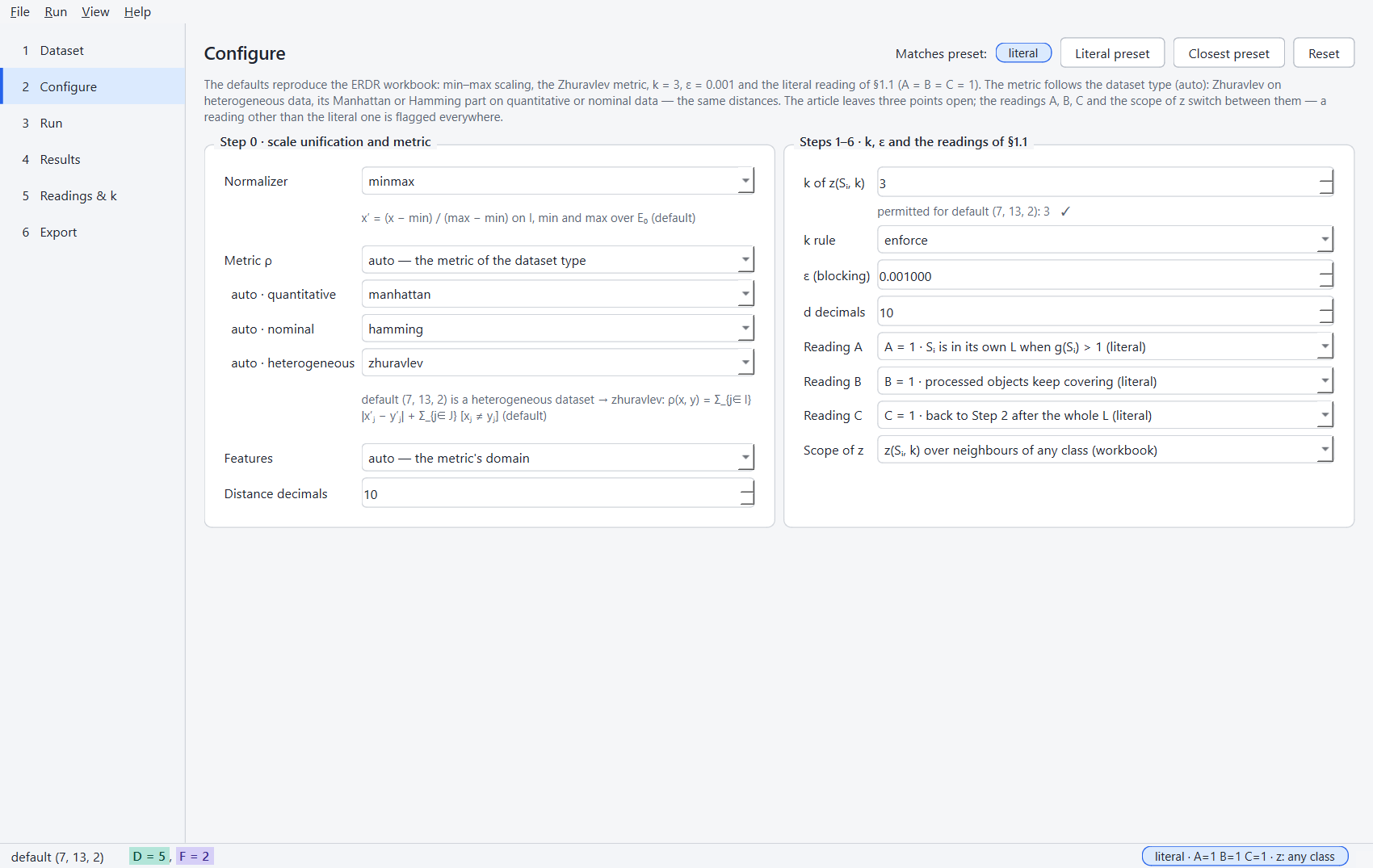
Step 0 (normalizer, metric — with a parameter form generated from the plug-in — feature selection,
rounding) and Steps 1–6 (k with the k rule, ε, the readings A, B, C and the scope of z). The title
row shows which preset the settings match — literal, closest or custom — next to the
Literal preset, Closest preset and Reset buttons; a ⚠ box at the top names every switch that
differs from the literal article text, and such a switch — and the preset badge — turns orange.
File → Open configuration… / Save configuration as… read and write configuration files.
The metric follows the dataset type (ADR-022): auto — the metric of the dataset type comes first,
and under it one box per type (auto · quantitative, auto · nominal, auto · heterogeneous)
offers the metrics that suit that type. With a dataset loaded, the metrics not defined on its
features are disabled (the tooltip says why), the note under the metric names the one auto
chooses, and a single-type metric on heterogeneous data shows the ⚠ box. The Run page's header
shows the metric that will run.
Run
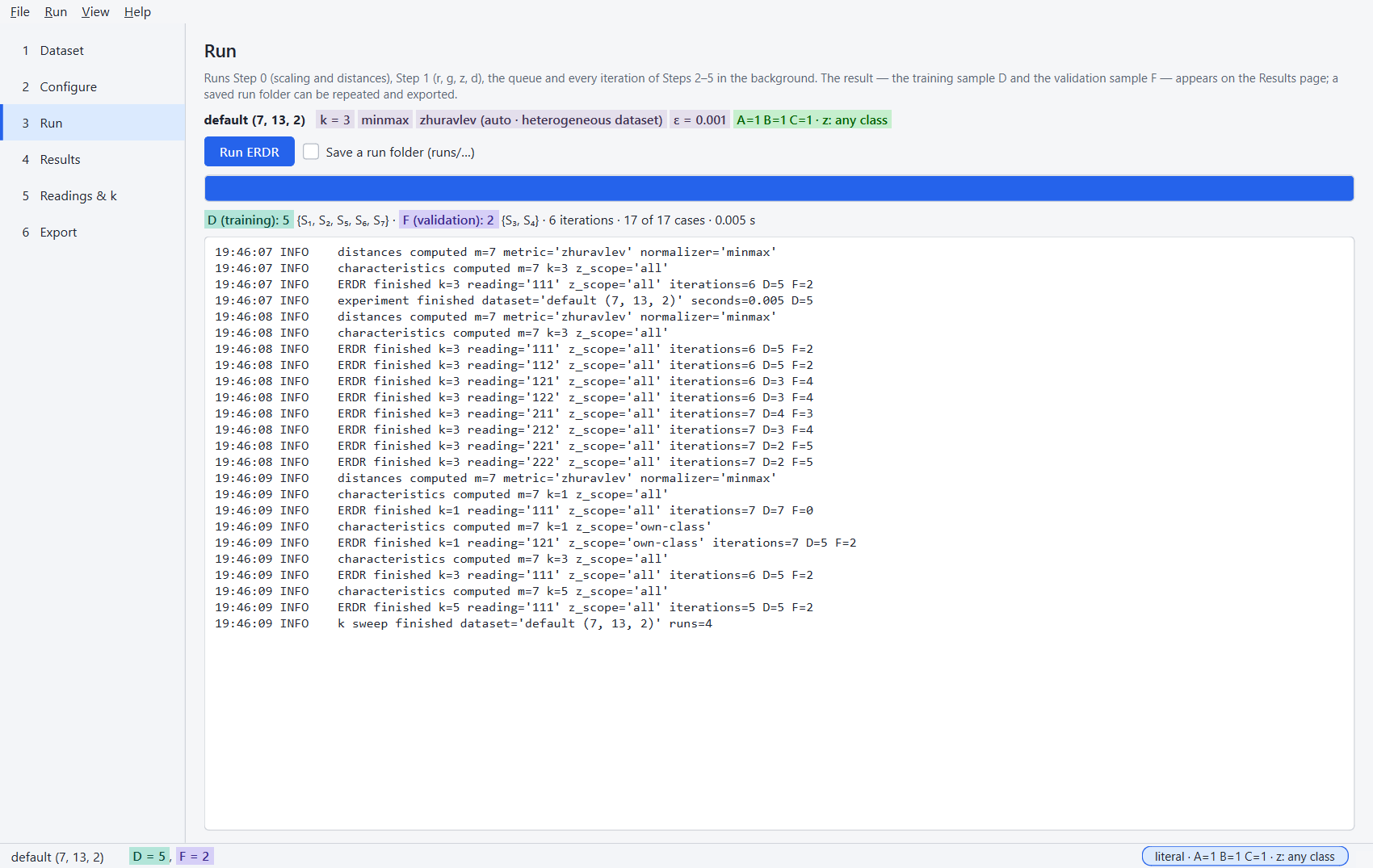
Runs in the background; the log shows every stage. Save a run folder writes a repeatable run.
Results
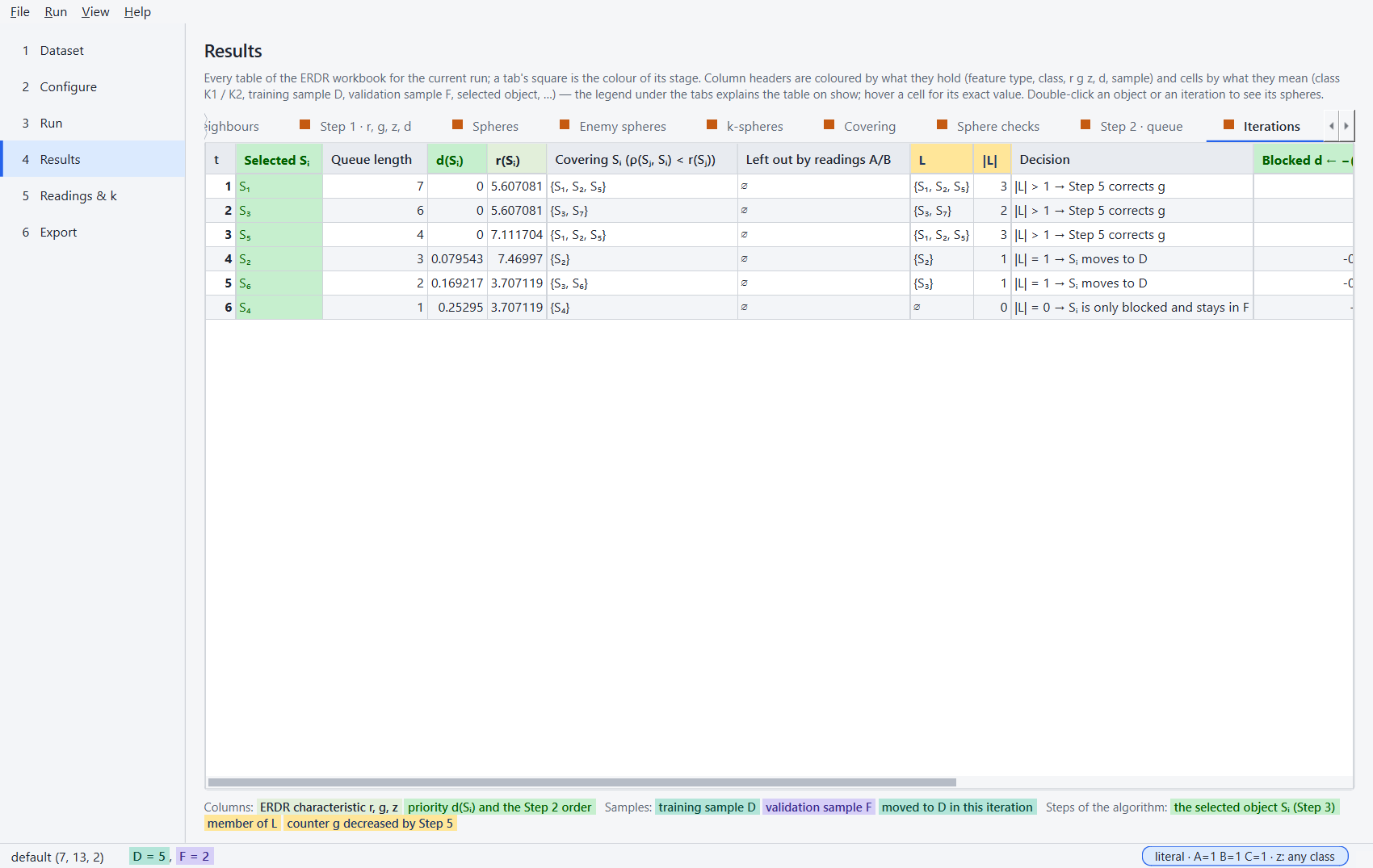
Every table of the ERDR workbook for the run — key results, the data, ρ (and ρ_I, ρ_J), the neighbour ranks, Step 1, the enemy spheres, the hypersphere tables (enemy spheres, k-spheres, the spheres that contain every object, the checks), the queue with its tie criteria, the iterations and their spheres, the counters, D and F with every object's route, the class composition and the 17 cases — the figures, and the hypersphere explorer. Headers are coloured by what a column holds and cells by what they mean (see Colours); the legend under the tabs follows the open table. Hover a cell for its exact value.
Hyperspheres
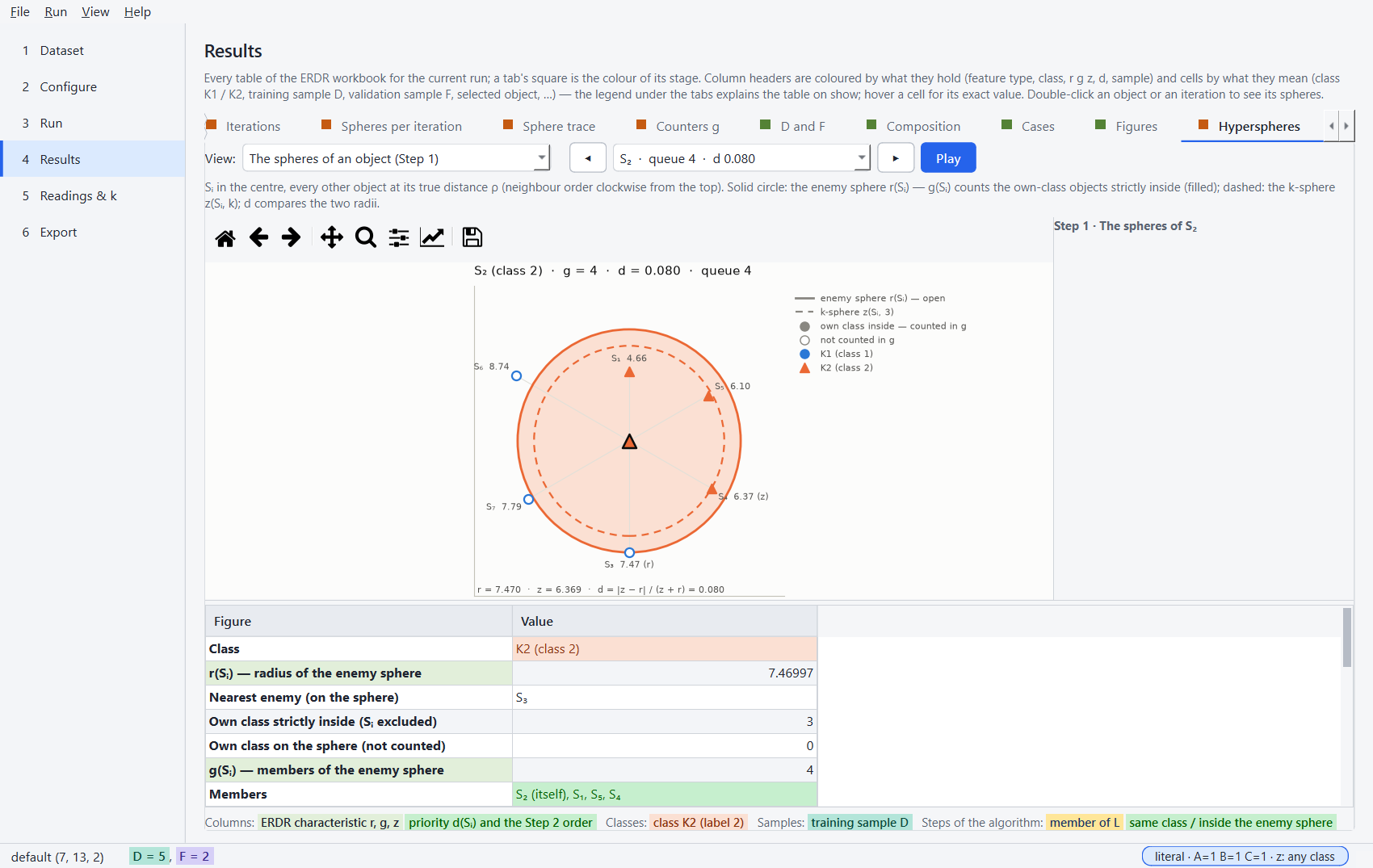
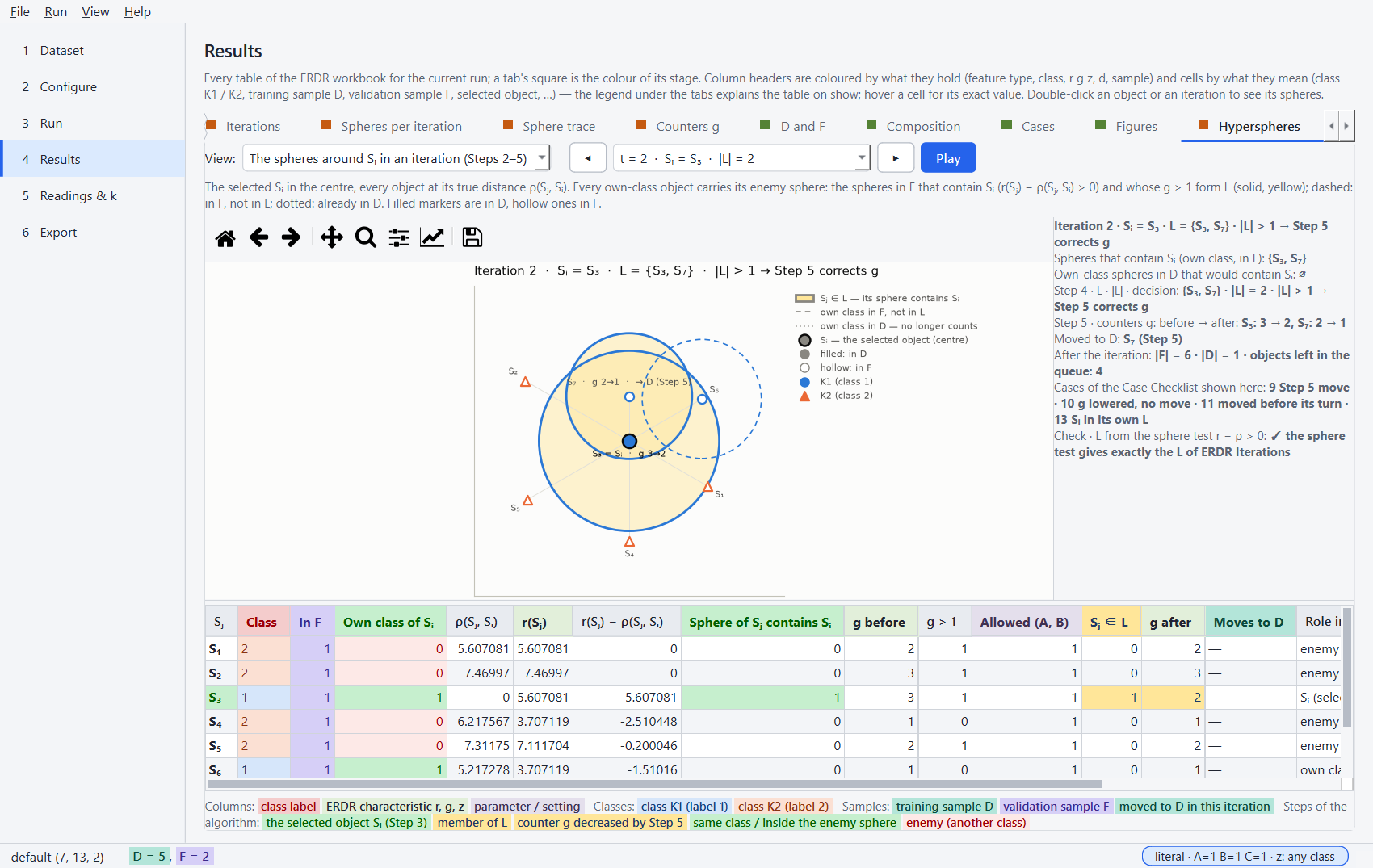
The Hyperspheres tab shows Steps 1–5 as spheres (Visualizations, ADR-020). Choose a view:
- the spheres of an object (Step 1) — the object in the centre, every other object at its true distance; the solid circle is its enemy sphere (the own-class objects inside are filled: g counts them), the dashed one its k-sphere; the table lists everything the two spheres say;
- the spheres around Sᵢ in an iteration (Steps 2–5) — the selected object in the centre and the enemy sphere of every object of its class: solid and yellow when the object is in L, dashed in F but not in L, dotted already in D; the table is the iteration's block of the workbook and the panel beside the figure its summary (L, the counters, the moves, the cases, the check);
- the neighbourhood strips and the radius plane of every object.
◀ ▶ step through the objects or the iterations (the iterations end with Step 6, the result); Play steps by itself and stops at Step 6. A double click on a row of Step 1, Enemy spheres, k-spheres, Covering, Step 2 · queue or D and F opens that object's spheres; on a row of Iterations, Spheres per iteration or Sphere trace, that iteration's. The explorer keeps its view when ERDR runs again.
Readings & k
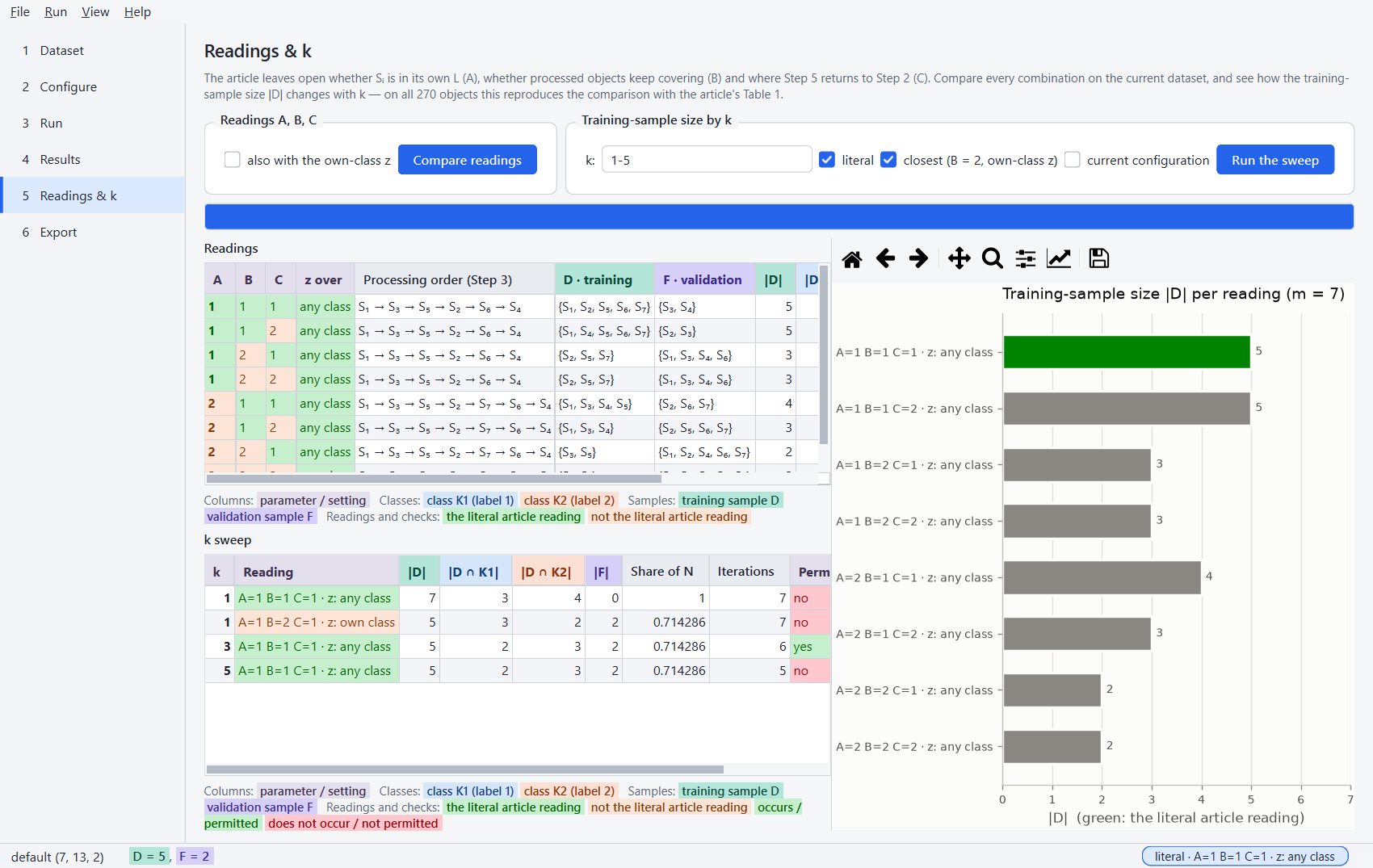
Compare every reading of A, B, C (optionally with the own-class z) and sweep k for the literal, the closest and the current reading — on all 270 objects this reproduces the workbook's comparison with the article's Table 1. Switch values of the article's text are green, the others orange; in the figures the literal reading is green and the closest blue, whichever readings are shown.
Export
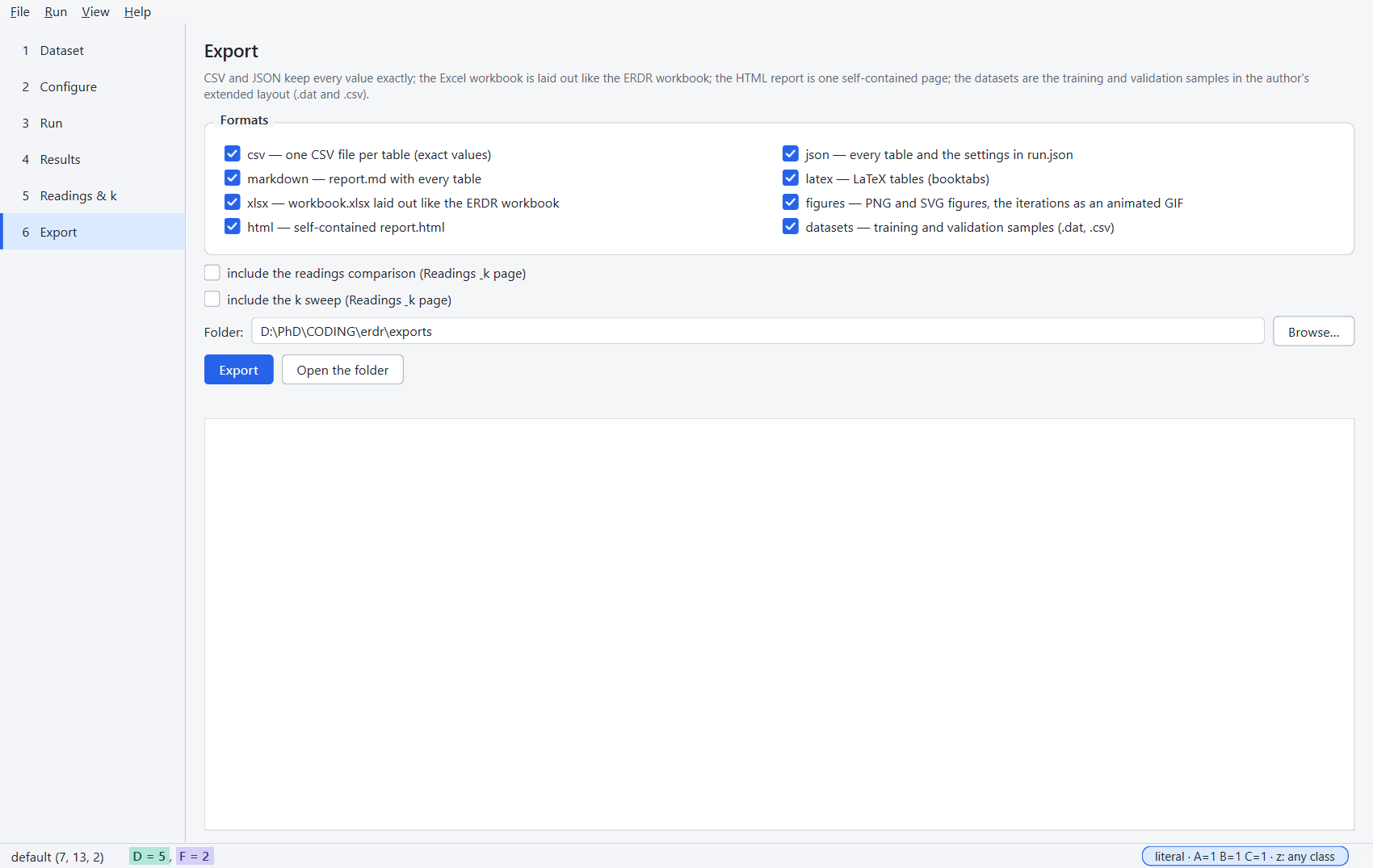
Choose the formats and a folder; the readings comparison and the k sweep can be included.
The portable executable
scripts\build_exe.py freezes the application with PyInstaller into dist\erdr-gui\ (a folder,
copied as a whole; nothing is installed) and dist\erdr-gui-<version>-windows.zip, then runs
erdr-gui.exe --self-test in an empty folder — the built-in default dataset, a run that must give
the workbook's D, a table, a figure, the hypersphere explorer, the readings and every export
format (ADR-013). CI builds it
on every push and attaches it to each release.
The screenshots are made by scripts\gui_screenshots.py.